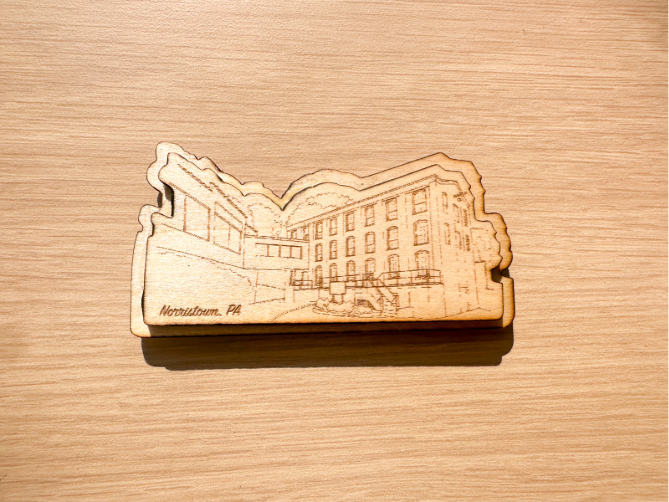

Integrating laser cutters like the Flux Beamo into STEM curriculum offers a hands-on way to explore theoretical concepts like engineering, physics, and computer science. With laser cutting, students can design prototypes, explore material qualities, and bring complex ideas to life through the precision and versatility offered by the tool. Not only is designing and exploring with the laser cutter engaging, but it also creates an integrated learning experience by pushing the boundaries of students’ creativity and problem-solving skills.
Our team is going to show you just one of the many projects you can create with your laser cutter, using both the laser engraving and laser cutting capabilities of the laser cutter!
For this project, we’ll be creating a layered wooden magnet with an engraved design. To get started, you’ll need the graphics software that’s compatible with your laser cutter, your design files for both the engraved piece and the background piece, quarter inch plywood, wood glue, some sandpaper, and a small adhesive magnet.
Start by turning on your laser cutter and laying your plywood into the bed. If your laser cutter has a camera, it’s helpful to capture a photo of the substrate in the machine using your design software to properly align your design on the wood.
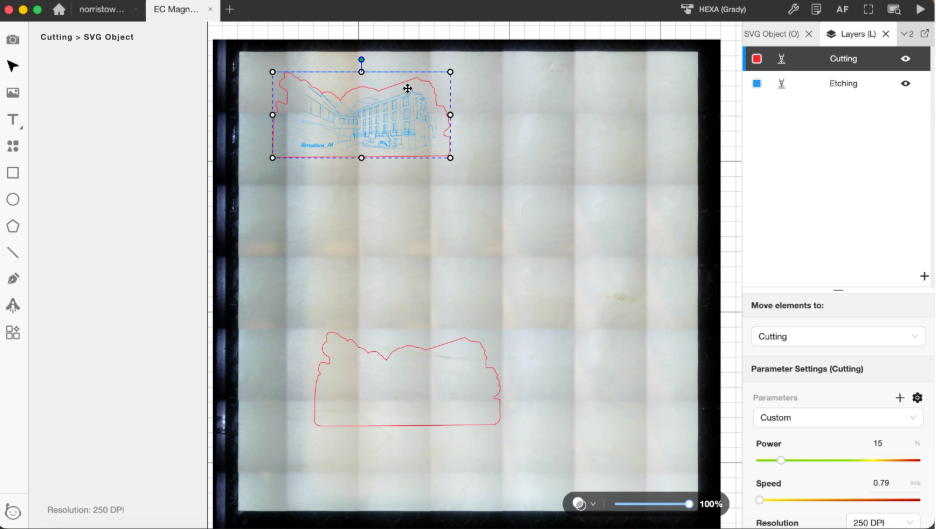
Next, import your design files into your graphics software and adjust the sizing to your liking. For our designs, we sized the engraved layer at about 4” wide, and adjusted the cut layers for both the outside of the engraving and the background piece accordingly to create a layered effect. Once you have everything sized to your liking, make sure you move the background cut away from the inner cut and engraving layer, so that you end up with a solid piece for the background (see above).
Now you’re ready to prepare your files to cut and engrave. Make sure the gradient is toggled off in the layer settings for each layer to ensure a clean and proper cut. The engraving will need to be on its own layer, since it will have different settings than the layers that are being cut. If your laser cutter has pre-determined settings based on material type, set your cut layer to the “wood cutting” setting. On our machine, those settings are power 70 and speed .12 in/s, but they may need to be adjusted depending on your machine’s laser strength. For the engraved piece, set the layer to “wood engraving.” On our machine, we used the settings power 40 and speed 9 in/s.
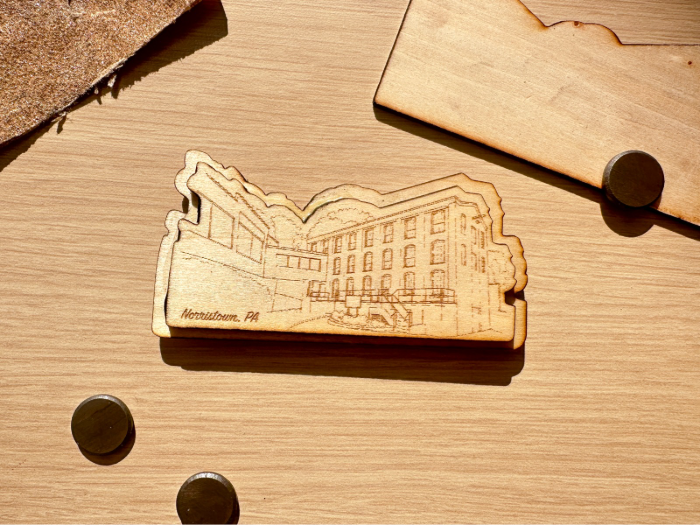
It’s time to cut! Send the cuts to your laser cutter and watch your magnet come to life. Once everything is engraved and cut, sand down any rough edges and adhere your engraved piece to the background using a bit of wood glue and firm pressure. Wipe off any excess wood glue. Let it dry. Finally, add your adhesive magnet on the back and your wooden magnet is complete!
Have questions or want to learn about other project ideas for your laser cutter? Contact us at info@fluxspace.io!
Project Examples
Have a solution to this challenge you want to share? Take a photo or video of your prototype, post it on social media, and don’t forget to tag us @fluxspace_io